How to Install Amazon Fire TV APK: A Guide for the Fire TV Stick
September 22, 2025 · Captain
Before You Begin
Make sure your Firestick is connected to the internet and logged into your Amazon account.
Introduction to Fire TV Stick
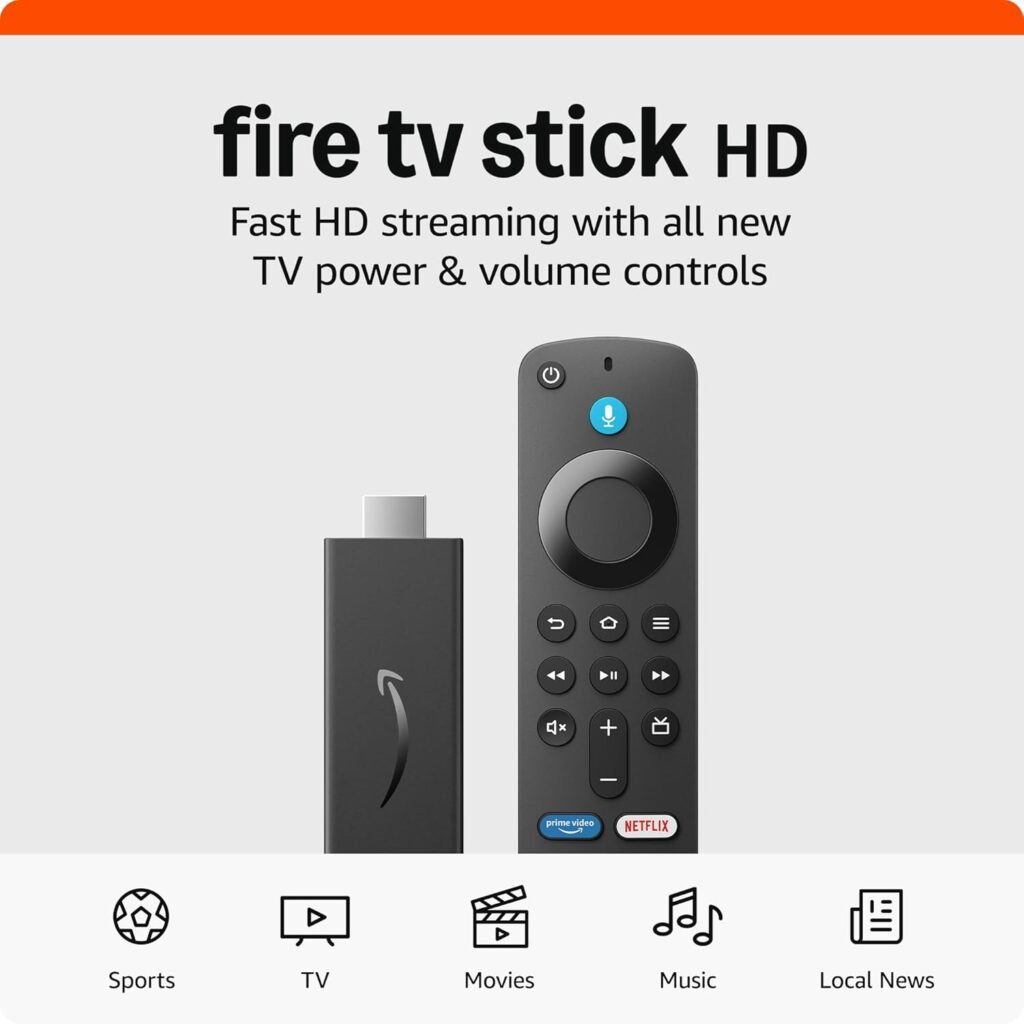
The Amazon Fire TV Stick is a versatile streaming device that transforms any TV with an HDMI port into a smart entertainment hub. With access to thousands of apps through the Amazon App Store, users can enjoy movies, TV shows, music, and more. But the Fire TV Stick’s real power lies in its ability to sideload APK files, giving you the freedom to install apps that aren’t available in the official app store. By enabling developer options and using the Downloader app, you can easily download and install APK files from trusted sources, expanding your app library and customizing your streaming experience. Whether you’re looking to access unique apps like Split-Flap TV or simply want more control over your device, the Fire TV Stick makes it easy to access, install, and enjoy a wide range of content on any screen.
Step 1: Enable Apps from Unknown Sources
- Go to Settings on your Firestick.
- Navigate to My Fire TV > Developer Options.
- Turn on ADB Debugging and Apps from Unknown Sources.
Note: These steps apply to various Fire TV models, including the Fire TV Cube and Fire TV Stick Lite, as well as other Fire TV devices running Fire OS 7 or later.
Step 2: Install Downloader App
- From the Firestick Home Screen, go to Find > Search.
- Type Downloader and select it from the results. The Downloader app is available in the Amazon Appstore (also referred to as the appstore) for easy installation.
- Click Download or Get to install it.
Step 3: Download the Split-Flap TV APK
- Open Downloader on your device.
- In the URL field, enter the direct link to the Split-Flap TV APK installation package from https://splitflaptv.com/player.apk.
- Press Go and wait for the APK to download.
Step 4: Install the APK
- Once the download finishes, a prompt will appear. You may also see a message regarding security or permissions—read and acknowledge any warning messages about enabling unknown sources or potential security risks.
- Use your remote to select ‘Install’ and navigate through the prompts.
- After installation, click Done or Open to launch Split-Flap TV.
Configuring the Split-Flap TV App
Once you’ve installed the Split-Flap TV app on your Fire TV Stick using the Downloader app, it’s time to personalize your experience. Open the app from your Apps & Channels section to access its intuitive user interface. From here, you can navigate through the settings menu to tailor the split-flap display to your preferences. Easily scroll through options to add or manage channels, adjust display settings, and connect to your Split-Flap TV account for seamless content management. The app is designed for easy navigation, allowing you to quickly access your favorite features and customize the look and feel of your digital signage. With Split-Flap TV, you can bring retro-inspired charm to your TV, display real-time messages, schedules, and more—all from the comfort of your Fire TV Stick.
Troubleshooting Common Issues
If you run into issues while sideloading or using the Split-Flap TV app on your Fire TV Stick, don’t worry—most problems have simple solutions. If the app doesn’t install or function properly, first check that your device is compatible and running the latest software version. Sometimes, uninstalling and reinstalling the app can resolve unexpected errors. Make sure you’ve enabled all necessary settings, such as allowing apps from unknown sources in the Developer Options menu. If you encounter persistent issues, visit the Split-Flap TV website or search online for troubleshooting guides and user feedback. Staying up to date with the latest app version and checking the settings menu for error messages can help ensure your app runs smoothly, so you can enjoy uninterrupted access to your digital signage and content.
Best Practices for Using APKs
To get the most out of APK files on your Fire TV Stick, it’s important to follow a few best practices. Always download APKs from reputable sources, such as the Amazon App Store or trusted websites, to protect your device from malware and security risks. Enable developer options and use the Downloader app for a safe and straightforward sideloading process. Regularly update your apps to the latest version to benefit from new features and security improvements. Be cautious when installing apps from unknown sources, and double-check that each app is compatible with your Fire TV Stick. For extra guidance, you can watch YouTube tutorials or explore online resources to learn more about installing and managing APKs. By following these tips, you’ll enjoy a secure, flexible, and enjoyable streaming experience on your Fire TV Stick, with access to a wide variety of apps and services tailored to your needs.
Optional: Delete the APK File
To save space:
- After installation, go back to Downloader and delete the APK file.
You’re Done!
Split-Flap TV should now appear in your Apps & Channels section. You can move it to the front for easy access. To discover the latest features, including real-time weather information display, check out our blog.