
Welcome to the Split-Flap TV App Marketplace, your gateway to unlocking endless possibilities for your digital displays. We built this marketplace with one goal in mind: to empower businesses like yours with tools that simplify and enhance the way you communicate with your audience. Each app in our collection is designed to address specific needs, making it easier than ever to create, manage, and display stunning content.
One standout in our lineup is the Menu Board App. We created this app to solve a common challenge faced by restaurants, cafes, and bars: how to quickly and effortlessly update menu items, prices, and promotions. With the Menu Board App, you can design visually appealing, dynamic menus that captivate your customers and drive sales. Whether you’re showcasing your coffee selection, daily specials, or happy hour deals, this app ensures your menu is always fresh, professional, and easy to manage.
By combining the simplicity of our platform with the power of these apps, we’re making it easier than ever to bring your ideas to life and connect with your audience in meaningful ways. Explore the marketplace today and discover how our apps can transform your Split-Flap TV experience.
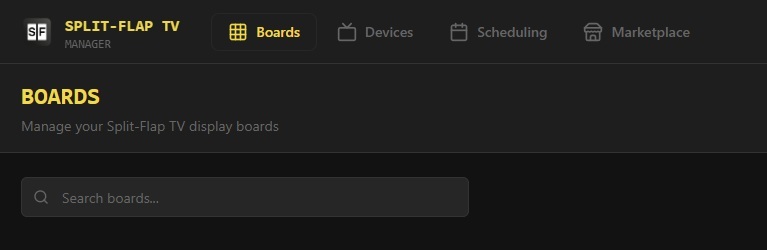
Step 1: Use Board Manager
Start by clicking the App Marketplace option in the Board Manager menu. The Split-Flap TV board manager can be accessed via this address: https://my.splitflaptv.com. Go there and log in to your Split-Flap TV Account.
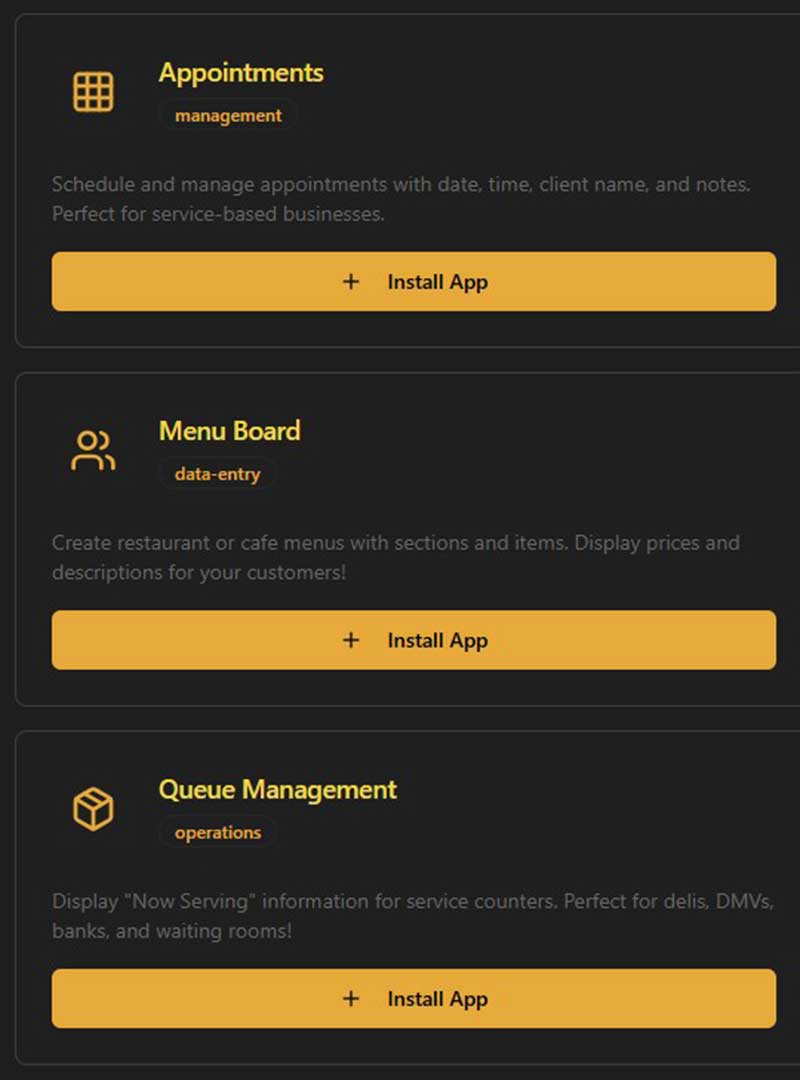
Step 2: Install App
Select the app you need from the list of available options. Click on the Install App button to create a first instance. You can create as many instances of the app as you need.
Here at these instructions, we will illustrate the use of a menu board.
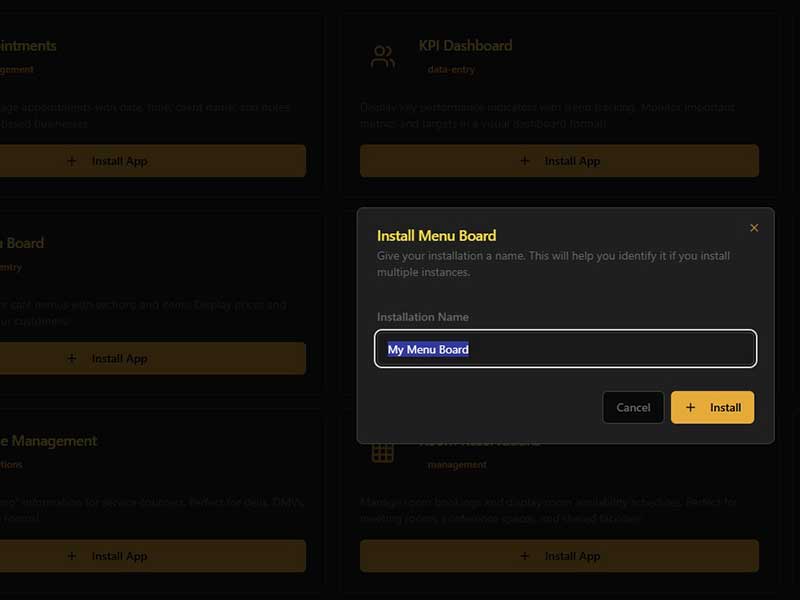
Step 3: Name Your Instance
Give the app instance a unique name.
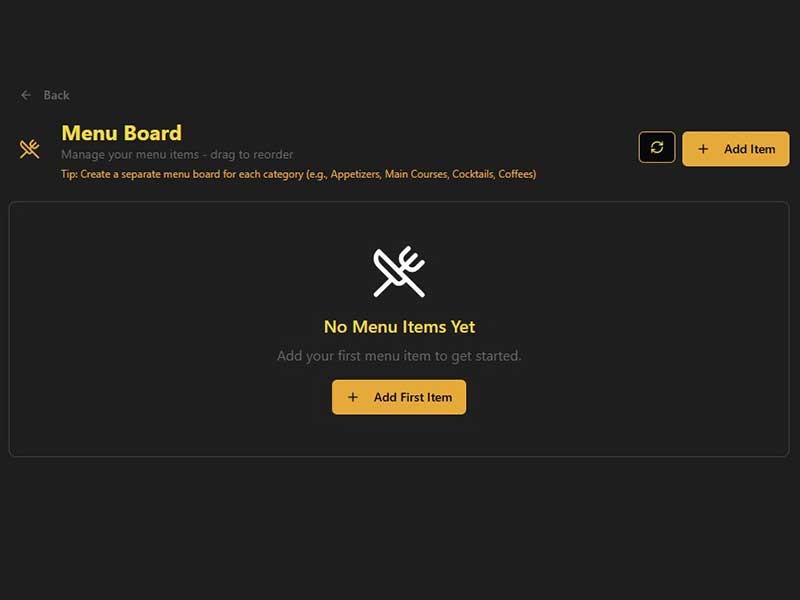
Step 4: Empty Board
Here is an empty menu board where you can add products or menu items. Ideally, you set up menu boards for groups on your screens like coffees, teas, beers, cocktails, mocktails, etc.
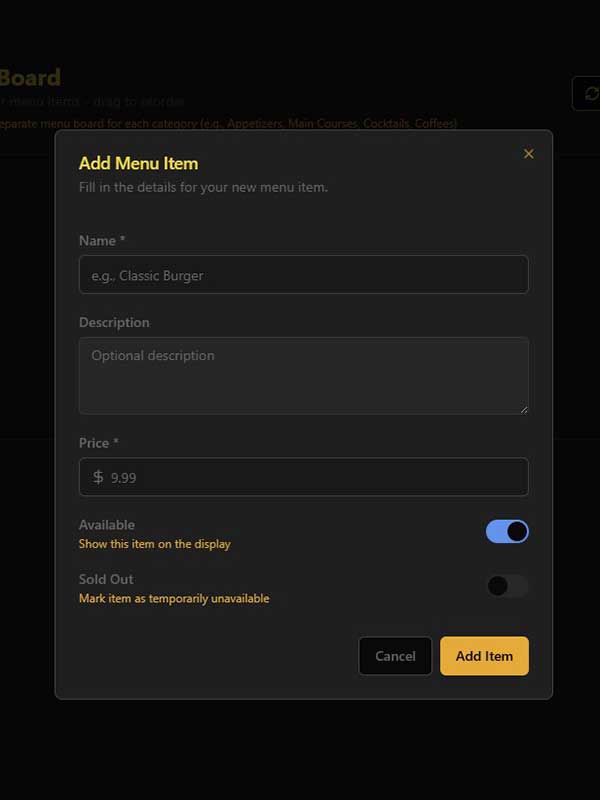
Step 5: Add Items
Add as many items as can fit on your screen. Give it a name, enter a description, and give it a price.
Optionally, you can hide or show an item on the board. Or you can mark an item as sold out.
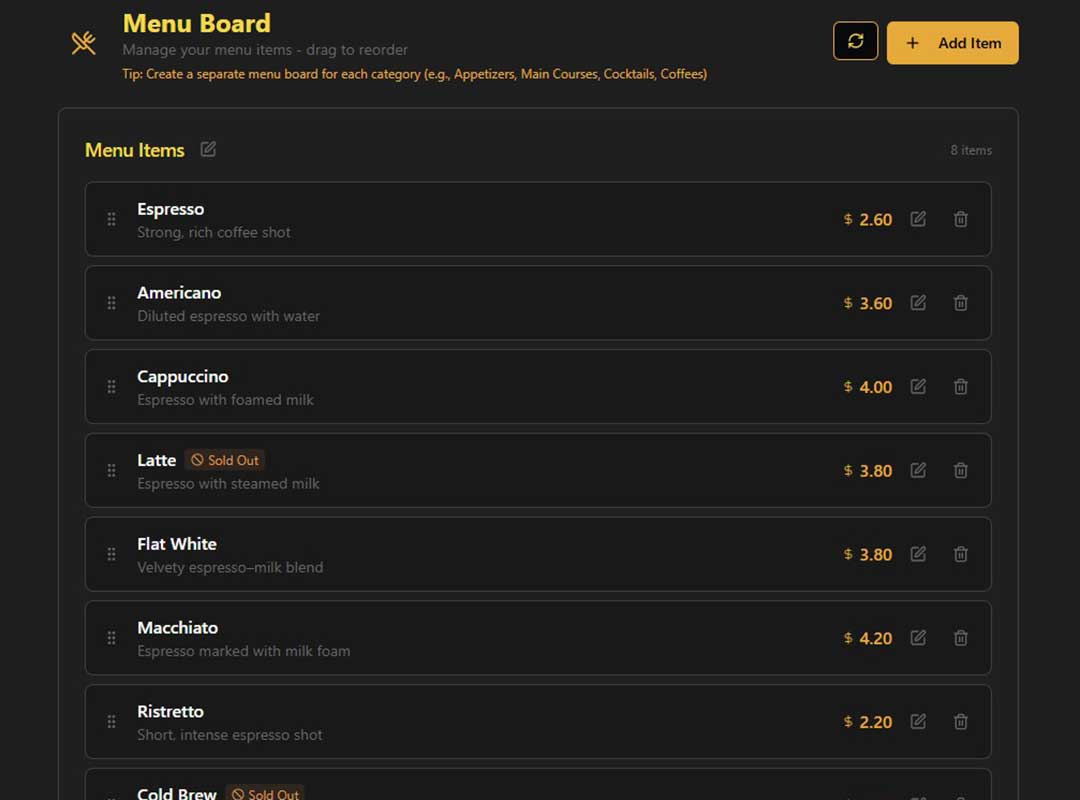
Step 6: Manage Items and Availability
Now you can use this app to manage your menu items, prices, and availability.
No more changing the settings of the splitflap board! You just edit the data, or you let your employees edit the data in a safe way so that it still looks how you have set it up originally.

Split-Flap!
Now sit down and watch your Split-Flap TV in action. It will show all your messages, all your promotions, and all your products so that you can sell more to happy customers.
Split-Flap your messages!