
Has your world suddenly turned sideways? Or, even worse, completely upside down? It’s a classic digital hiccup-one moment you’re working, the next you’re craning your neck, wondering what strange key combination you accidentally mashed. Whether you’ve stumbled into this disorienting dilemma or you’re intentionally trying to set up a sleek vertical display for coding or design, knowing how to rotate computer screen settings is an essential modern skill. It’s the kind of simple fix that feels like a secret handshake once you know it.
Forget the frantic searching and confusion. This guide is your elegant solution. We’ll give you the instant keyboard shortcuts that actually work and provide simple, step-by-step instructions for both Windows and Mac. You’ll learn exactly how to take back control, whether you’re using system settings or your graphics card software, and turn your display into the perfect orientation for your workflow. Let’s get your screen pointed in the right direction.
Key Takeaways
- Instantly fix a sideways display with the classic Windows keyboard shortcut-the fastest solution when you’re in a hurry.
- Master the step-by-step settings to reliably control your display’s orientation on both Windows and macOS systems.
- Learn how to rotate computer screen using your graphics card’s control panel, an essential method for advanced control or troubleshooting.
- Discover the top use cases for a vertical monitor to unlock new levels of productivity for coding, writing, and browsing.
The Fastest Fix: Keyboard Shortcuts to Rotate Your Screen
Ever hit a stray key and suddenly found your world turned upside down? While often accidental, knowing how to rotate computer screen on command is the quickest way to achieve that classic, vertical arcade or retro terminal look. For many Windows users, the solution is a beautifully simple piece of digital nostalgia that’s just a few keystrokes away. If you’re in a hurry to get that perfect retro orientation, this is your first stop.
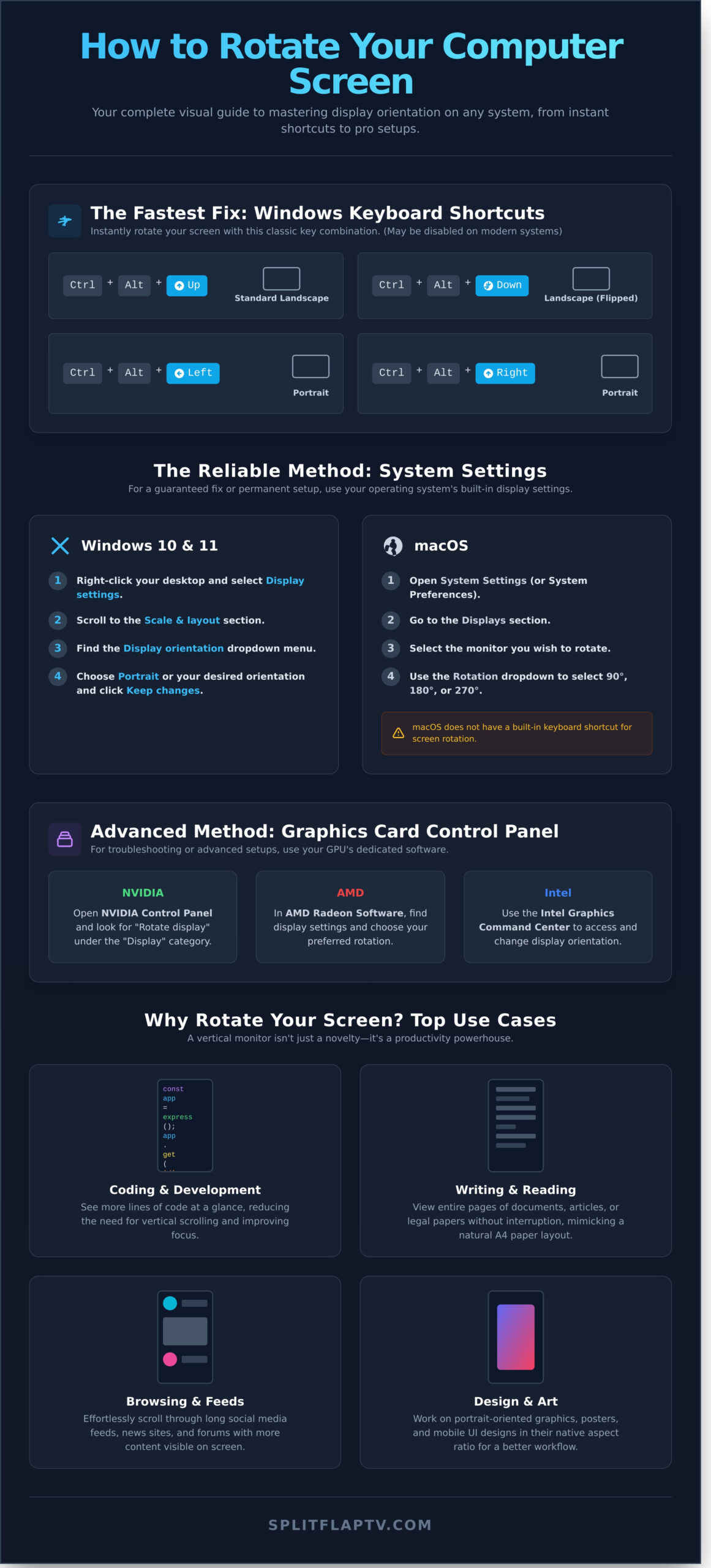
The Classic Windows Shortcut: Ctrl + Alt + Arrow Keys
This is the old-school, tried-and-true method. If your computer’s graphics drivers have this feature enabled, this key combination is the most direct way to manipulate your display. It allows you to instantly flip between standard landscape and vertical portrait modes, fundamentally changing its Page orientation with a single press. Give it a try:
- Ctrl + Alt + Up Arrow: Returns your screen to its standard, upright landscape position.
- Ctrl + Alt + Down Arrow: Flips the display completely upside down (180-degree rotation).
- Ctrl + Alt + Left Arrow: Rotates the screen 90 degrees to the left, into portrait mode.
- Ctrl + Alt + Right Arrow: Rotates the screen 90 degrees to the right, also into portrait mode.
Why the Shortcut Might Not Work (And What to Do)
Pressed the keys and… nothing? Don’t worry, your keyboard isn’t broken. In a move toward modern convenience (and away from classic office pranks), most graphics card manufacturers like Intel, NVIDIA, and AMD now disable these hotkeys by default. This smart decision prevents accidental flips and avoids conflicts with other application shortcuts. Furthermore, some 2-in-1 laptops rely on built-in sensors to handle rotation automatically. If the classic shortcut fails you, don’t despair-the next method is a guaranteed fix.
Is There a Keyboard Shortcut to Rotate a Mac Screen?
The short answer is a simple no. By design, macOS does not include a built-in keyboard shortcut for screen rotation. Apple’s philosophy prioritizes a stable and predictable user experience, so they’ve opted to tuck this setting away to prevent you from accidentally turning your display sideways. For Mac users figuring out how to rotate computer screen, the reliable solution is found in System Settings, which we’ll cover in the next section.
How to Rotate Your Screen in Windows Settings (The Reliable Method)
While keyboard shortcuts offer a quick fix, they can sometimes be disabled or unreliable. For a permanent setup-like crafting that perfect, dedicated retro display-diving into the system settings is the definitive, classic method. It’s the most robust way to get things just right. This guide will walk you through how to rotate computer screen settings directly in Windows, ensuring a frustration-free experience.
Step-by-Step Guide for Windows 11
Windows 11 makes this process elegant and simple, tucking the option away in a logical spot. Here’s how to find it in just a few clicks:
- Right-click on an empty area of your desktop and select Display settings from the context menu.
- In the Scale & layout section, locate the dropdown menu labeled Display orientation.
- Click the menu to reveal your options. Choosing ‘Portrait’ is the secret to achieving that classic, vertical departure board aesthetic.
- Select your desired orientation. A confirmation box will appear, giving you 15 seconds to click Keep changes before it automatically reverts.
[Screenshot: Windows 11 Display settings showing the ‘Display orientation’ dropdown menu with Portrait selected.]
You’ll have four orientations to choose from:
- Landscape: Your standard, default horizontal view.
- Portrait: The magic setting. Rotated 90 degrees clockwise, perfect for that vintage split-flap look.
- Landscape (flipped): A full 180-degree flip, placing your taskbar at the top.
- Portrait (flipped): The opposite of Portrait, rotated 90 degrees counter-clockwise.
Step-by-Step Guide for Windows 10
Still running the classic Windows 10? No problem. The process is nearly identical, a testament to Microsoft’s consistent design. Simply right-click your desktop, choose Display settings, and scroll down to find the same Display orientation menu. Select your preference, confirm the change, and you’re all set.
[Screenshot: Windows 10 Display settings with the ‘Display orientation’ menu highlighted.]
Managing Multiple Monitors
Got more than one screen in your setup? Windows handles this with ease. At the top of the ‘Display settings’ window, you’ll see a diagram of your connected monitors. Simply click on the specific screen you want to rotate before changing the orientation. The settings will only apply to the selected display, leaving your others untouched. Understanding how to rotate your computer screen on a per-monitor basis is crucial for creative setups. While these steps cover Windows, the process for Rotating Your Screen on a Mac involves a similar trip to System Settings to achieve the same precise result.
Rotating Your Screen on a Mac
Apple’s elegant macOS makes screen rotation a breeze, bringing that classic vertical aesthetic to your modern setup. The process is straightforward, but the steps can change slightly depending on your hardware. Whether you’re connecting a dedicated external display or want to experiment with your MacBook’s screen, we’ve got you covered.
Let’s walk through the simple steps for how to rotate computer screen on a Mac. In just a few clicks, you can flip your display and start conjuring some serious retro cool.
For an External Monitor (The Common Scenario)
Hooked up a second screen? This is where the magic really happens. Rotating an external monitor is perfect for creating a retro-style digital menu board, a vertical social media feed, or a dedicated coding window. If you’re curious about other clever applications, this guide to the Top Use Cases for Vertical Displays from the experts at CORSAIR offers some fantastic ideas. Here’s how to get it done:
- Open System Settings: Click the Apple icon in the top-left corner and select System Settings (or System Preferences on older macOS versions).
- Navigate to Displays: Scroll down the sidebar and click on the Displays section.
- Select Your Monitor: You’ll see all connected displays. Click on the external monitor you wish to rotate.
- Choose Your Angle: Find the Rotation dropdown menu. You can choose 90°, 180°, or 270°. Select your desired orientation, and a confirmation box will appear. Click Confirm to save the change.
For a MacBook or iMac Built-in Display
Ready for a cool trick? Apple keeps the rotation option for built-in displays hidden by default, but we know the secret handshake. This is a neat party trick, but be warned-rotating the screen you’re working on can be disorienting. It’s a powerful tool, but use it wisely!
To reveal the hidden feature, you’ll need a special key combination. This is the most direct method for how to rotate computer screen when it’s your primary, built-in display.
- Press and Hold: Hold down the Option (⌥) + Command (⌘) keys on your keyboard.
- Open Displays: While still holding the keys, navigate to System Settings > Displays.
- Find the Hidden Menu: With the keys held, the Rotation dropdown menu will magically appear for your built-in display.
- Select and Confirm: Choose your desired angle and confirm the change. If you get stuck, don’t worry-the display will revert to its standard orientation after 15 seconds.
Advanced Method: Using Your Graphics Card Control Panel
Sometimes, the classic Windows method just doesn’t cut it. Have you ever found the display orientation settings greyed out or just plain missing? This often happens when your graphics card drivers override the default system settings. For the power users and tinkerers among us, going directly to the source-the graphics card control panel-is the most robust solution.
This method offers more direct control over your hardware and is often the only way to re-enable those classic rotation hotkeys if they’ve been disabled. While the built-in Windows feature is great for a quick flip, this advanced guide on how to rotate computer screen ensures nothing stands between you and that perfect retro orientation. Find your graphics card manufacturer below and let’s get started.
NVIDIA Control Panel
If your rig is powered by NVIDIA, you have access to their powerful control panel. It’s a straightforward path to getting your screen flipped just right.
- Right-click on an empty space on your desktop and select NVIDIA Control Panel.
- In the left-hand menu, navigate to Display > Rotate display.
- Choose your desired orientation (Landscape, Portrait, etc.) and click Apply to see the magic happen.
AMD Radeon Software
For those on Team AMD, the Radeon Software suite is your command center. The interface is modern, but the function is timeless: turning your display on its head.
- Right-click your desktop and open AMD Radeon Software.
- Click the Settings (gear) icon in the top right, then select the Display tab.
- Under the ‘Display Options’ section, you can easily choose your preferred rotation.
Intel Graphics Command Center
Intel’s integrated graphics are incredibly common, and their Graphics Command Center makes screen rotation a breeze. Unlike the others, this is often a standalone app.
- Search for and open the Intel Graphics Command Center from your Start Menu.
- Go to the Display tab on the left.
- Find the Rotation setting and select your orientation from the dropdown menu.
Mastering these controls gives you ultimate flexibility for any project. Once you’ve perfected your screen’s orientation, you’re ready to transform it into something with true retro cool. A perfectly rotated vertical screen is the ideal canvas for a classic split-flap display. See how you can bring that iconic clicking charm to your newly rotated screen at splitflaptv.com.
Why Rotate Your Screen? Top Use Cases for Vertical Displays
So, you’ve mastered the technical steps. But knowing how to rotate computer screen is just the beginning. The real question is: what classic, cool, or productive new purpose will you give your display? The process is simple, but its applications are incredibly diverse. Flipping your monitor on its side isn’t just a novelty; it’s a powerful way to reshape your digital workspace for specific, high-impact tasks.
For Coders, Writers, and Deep Thinkers
A vertical orientation is a game-changer for anyone working with long-form text. Instead of a wide, sprawling canvas, you get a focused, page-like view that feels instantly more natural and efficient. It’s an elegant solution for deep work.
- See More, Scroll Less: View dozens of additional lines of code or paragraphs of your manuscript at a single glance, reducing the constant need to scroll.
- Eliminate Distractions: The narrow format helps keep your eyes locked on the task at hand, boosting concentration and productivity on complex documents.
For Creators, Designers, and Streamers
In a world increasingly viewed through a vertical lens, a portrait monitor is an essential tool. It allows you to create and manage content in its native format, giving you a true preview of the end-user experience and a smarter way to engage with your audience.
- Perfect Your Portrait Content: Design mobile app UIs, social media stories, and digital posters with 1:1 accuracy.
- Manage Your Community: Streamers can dedicate a vertical monitor to their live chat, creating a seamless, endlessly scrolling feed that’s easy to follow in real-time.
For Businesses and Unique Public Displays
This is where a vertical screen truly becomes a canvas for creativity. Businesses and innovators use portrait displays to create unforgettable experiences that blend practical information with retro charm. From dynamic restaurant menus and office directories to stunning art installations, a vertical screen commands attention. It breaks the mold of the standard landscape display, creating an elegant and eye-catching focal point in any space.
Ready to take it to the next level? Turn your vertical screen into a classic airport-style display, complete with that satisfying analog click. It’s the ultimate way to reimagine what a screen can be.
Mastering the Turn: From Screen Rotation to Retro Displays
Now you have all the tools you need. Whether you’re using a quick keyboard shortcut for an instant fix or navigating the system settings on Windows and Mac for a more permanent change, mastering how to rotate computer screen is a surprisingly simple skill. This simple adjustment unlocks a powerful new perspective, making your monitor perfect for coding, reading long documents, or even setting up a unique vertical digital sign.
But why stop at a simple 90-degree turn? Imagine transforming that vertical screen into a stunning, attention-grabbing centerpiece. Split Flap TV reimagines the classic split-flap display, bringing its timeless, analog charm to any modern screen. Trusted by innovative shops, restaurants, and offices worldwide, our software lets you captivate customers and create a unique atmosphere with that iconic clicking sound that conjures pure nostalgia. Ready to create your own retro display? Start your free trial.
Go ahead, flip your perspective and turn your ordinary screen into an extraordinary experience.
Frequently Asked Questions
Why did my computer screen rotate by itself?
That sudden flip is almost always caused by an accidental keyboard shortcut. It’s a classic, built-in feature of many systems. On Windows, the combination is typically Ctrl + Alt + an Arrow Key. It’s easy to hit by mistake! To restore that familiar, standard view, simply press Ctrl + Alt + Up Arrow. This quick, elegant fix will get your display back to its original orientation in an instant, solving a surprisingly disorienting digital problem.
How do I rotate only one of my two monitors?
Creating a custom, multi-screen setup with a vertical display is a wonderfully modern twist. On Windows, navigate to Settings > System > Display. You’ll see a diagram of your monitors; simply click on the one you wish to rotate. Then, scroll down to the “Display orientation” menu and select “Portrait.” Your chosen screen will flip, leaving the other untouched, giving you the ultimate flexibility to design your retro-cool digital canvas.
Can I rotate the screen on a Chromebook?
Absolutely. Chromebooks bring their signature modern simplicity to this task. Forget digging through menus-just use a simple keyboard shortcut. Press and hold Ctrl + Shift + Refresh (the key with the circular arrow icon). Each press will rotate your screen 90 degrees, allowing you to cycle through every orientation with ease. It’s a clever, built-in feature that makes achieving that classic vertical display effortless and fast.
My mouse moves sideways after rotating the screen. How do I fix it?
This is a classic and expected part of the experience! Your mouse is still operating on a horizontal axis, even though your screen is now vertical. The only “fix” is to adjust your own movement. To move the cursor “up” on a 90-degree rotated screen, you now have to move your physical mouse to the side. It feels strange for a moment, but your brain adapts quickly to this charming quirk of reimagining your display’s layout.
Is rotating the screen bad for my monitor?
Not in the slightest. Rotating your display is a purely digital command handled by your computer’s software. It has no physical impact on the monitor’s hardware whatsoever. Your screen is simply a canvas, designed to show pixels in any orientation it’s told to. So feel free to flip it and get creative with your retro display. Your modern technology is built for this kind of flexible, stylish use, so you can rotate with complete confidence.
What do I do if I don’t see any rotation options in my settings?
If the rotation settings have vanished, the issue almost always points to your graphics drivers. These drivers are the software that allows your computer to communicate with your monitor. The solution is to update them. Visit the website for your graphics card manufacturer (like NVIDIA, AMD, or Intel) and download the latest drivers. A quick installation and restart should restore the missing options, putting you back in control of how to rotate computer screen.