
How to Get Started with the Split-Flap TV App Marketplace
January 16, 2026 · Captain
You have heard the buzz. You know that the days of wrestling with complex data integrations for your digital signage are over. You are ready to empower your team and bring your screens to life with real-time data.
But how do you actually do it?
The beauty of the Split-Flap TV App Marketplace lies in its simplicity. We designed it so that anyone—not just your IT director—can set up powerful, data-driven displays in minutes. Whether you want to welcome guests, track production goals, or manage a busy waiting room, the process remains the same: select, bind, and delegate.
Here is your step-by-step guide to transforming your digital signage experience. Prefer a screen-by-screen walkthrough of the board manager? Follow our App Marketplace setup guide.
Step 1: Browse and Select Your App
Think of the App Marketplace like the app store on your phone. It is a library of pre-built solutions ready to go. You don’t need to write code or configure servers; you just need to know what problem you want to solve.
Log in to your Split-Flap TV account (remember, you will need a Cockpit Subscription to access these features). Navigate to the “Apps” section in your dashboard. Here, you will see a growing collection of tools designed for specific business needs.
Popular options include:
- Welcome Board: Perfect for lobbies and receptions to greet visitors by name.
- KPI Dashboard: ideal for warehouses or sales floors to visualize targets.
- Queue Management: Essential for service centers to show ticket numbers and wait times.
- Room Reservations: Great for corporate offices to show meeting room availability.
Click on an app to see details about what it does. Once you find the one you need, simply select it to add it to your account. It is now ready for configuration.
Step 2: Configure and Bind Data
This is where the magic happens. In traditional systems, this step would involve API keys, database queries, and a lot of headaches. With Split-Flap TV, it is a matter of clicking a few buttons.
Once you have selected an app, you need to tell your screen where to display it.
- Open your Board Layout: Go to the screen layout editor where you design your digital signage content.
- Add the App Component: Drag and drop the specific app widget onto your canvas.
- Bind the Data: In the settings for that widget, you will select the specific instance of the app you just added.
That’s it. You have essentially created a “pipe” between the hosted app and your screen. The screen is now listening for data from that app. If the app is empty, your screen might show a placeholder or remain blank. Now, let’s fill it with data.
Step 3: Delegate Data Entry (The “No-IT” Magic)
This is the feature that changes everything for your daily operations.
Previously, if you wanted to change the content on a screen, you needed to log in to the main digital signage CMS. This meant you either needed admin rights (risky!) or you had to ask an admin to do it for you (slow!).
The App Marketplace solves this with Delegated Data Entry.
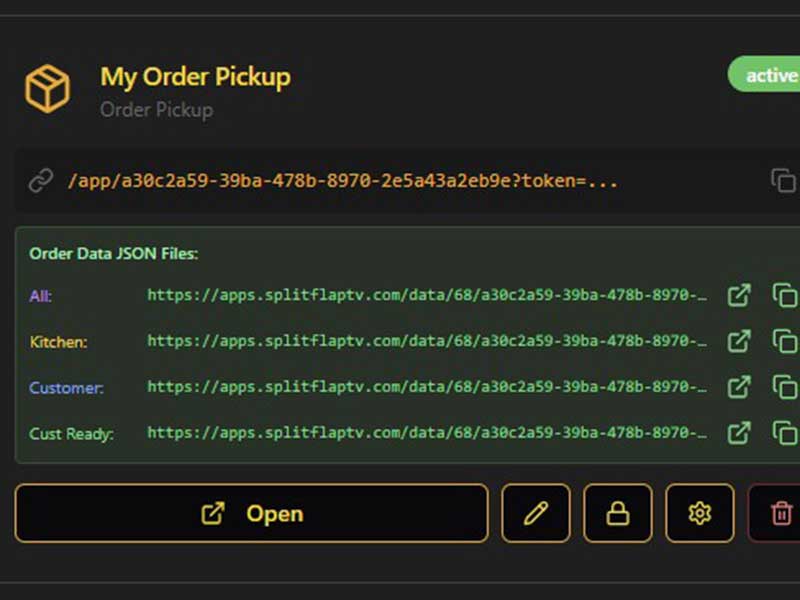
For every app you set up, the system generates a unique, secure URL. This is a standalone web page that contains only the data entry form for that specific app.
Here is how to use it:
- For a Welcome Board: Copy the unique URL and email it to your front desk receptionist. They can bookmark it in their browser. When a VIP guest arrives, they open the link, type the guest’s name, and hit “Update.” The screen in the lobby changes instantly. They never see your complex signage settings; they only see a simple form asking for a name.
- For a KPI Dashboard: Send the link to the floor manager. At the start of the shift, they can input the daily targets. Throughout the day, they can update current progress numbers right from their tablet or phone.
- For Queue Management: Give the link to the service desk staff. They can increment ticket numbers or call the next customer with a single click.
Step 4: Watch It Work in Real-Time
Because our apps are hosted in the cloud, the connection is live. There is no need to manually “push” updates to players or wait for a nightly refresh cycle.
When your colleague hits “Save” on the data entry form, your screens update immediately. This responsiveness is critical for apps like Live Flights Info or Order Pickups, where outdated information causes confusion.
Why This Matters for Your Business
By separating the technical setup (the “binding”) from the daily operation (the data entry), you remove the bottleneck.
- Marketing ensures the branding and layout look perfect.
- IT ensures the network and hardware are secure.
- Operations Staff controls the actual message.
Everyone stays in their lane, and the screens stay fresh, relevant, and useful.
Ready to Dive In?
The Split-Flap TV App Marketplace is open for business. Stop staring at static screens and start using tools that actually help your team work smarter.
If you haven’t yet, upgrade to a Cockpit Subscription today to unlock full access to the marketplace and start building your own ecosystem of smart, data-driven displays.
[Explore the Marketplace Now] | [Get a Cockpit Subscription]